Setup
How to Replace the GloriaFood Button on WordPress, Wix and Squarespace

Photo: Carriza Maiquez on Unsplash
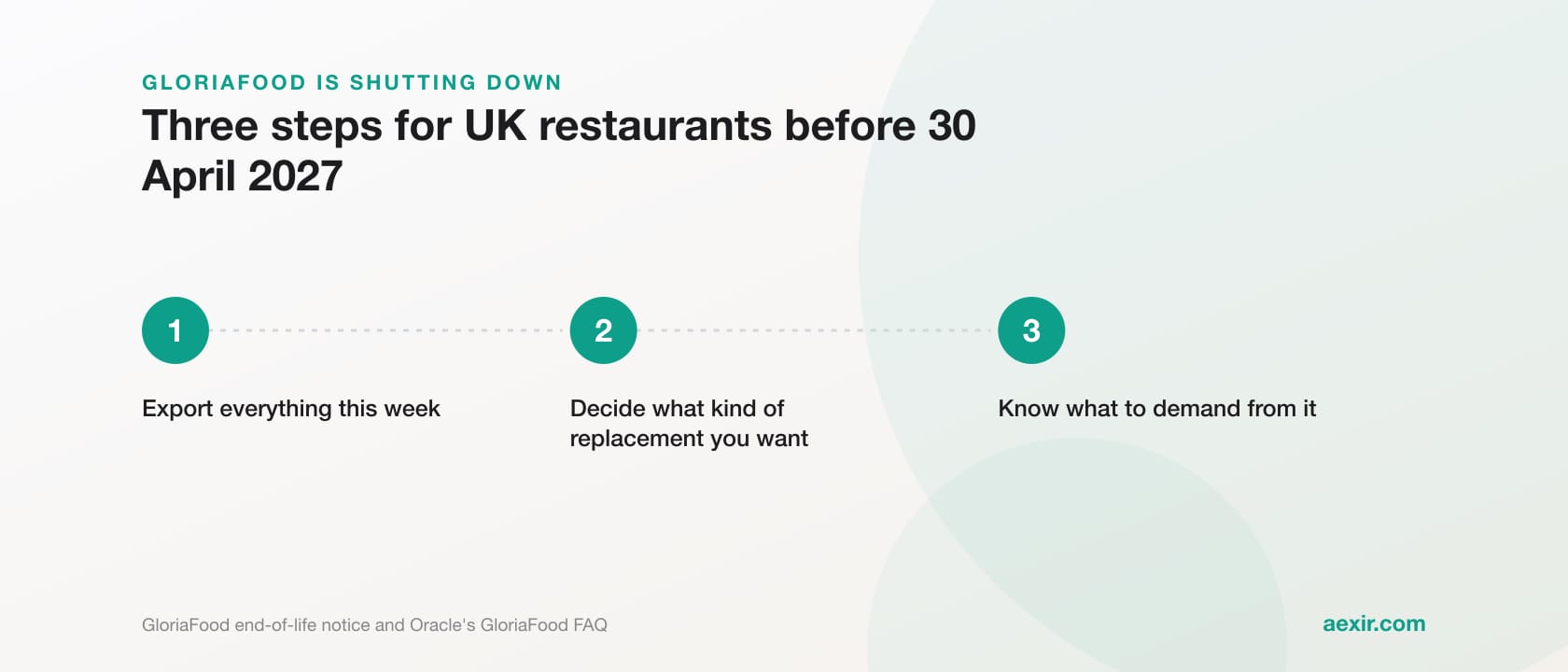
To replace GloriaFood on your website, delete the GloriaFood button code from every page and add an ordinary button that links to your new ordering page. On WordPress, remove the plugin’s shortcodes and blocks, then deactivate and delete Menu - Ordering - Reservations. On Wix, delete the HTML embed. On Squarespace, delete the Code blocks and the footer script. Then swap the same link on Facebook, Google, Instagram and your QR codes. GloriaFood reaches end of life on 30 April 2027, so everything that still points at it has to move before then. Each step follows the platform’s own help page, named in brackets, read on 28 October 2026.
The order that avoids a dead button: get your new ordering link working, list every place the GloriaFood button or smart link appears, swap each one, test, and only then delete the WordPress plugin or close GloriaFood. None of it needs a developer.
Before you start: two links to have in hand
- Your new ordering link. Open it on your phone, on mobile data, and place a test order before you put it anywhere public.
- Your old GloriaFood smart link. GloriaFood’s Facebook guide says it is in the GloriaFood admin under Publishing, then Facebook. Copy it into a note while your account still works, so you can recognise it wherever it was pasted.
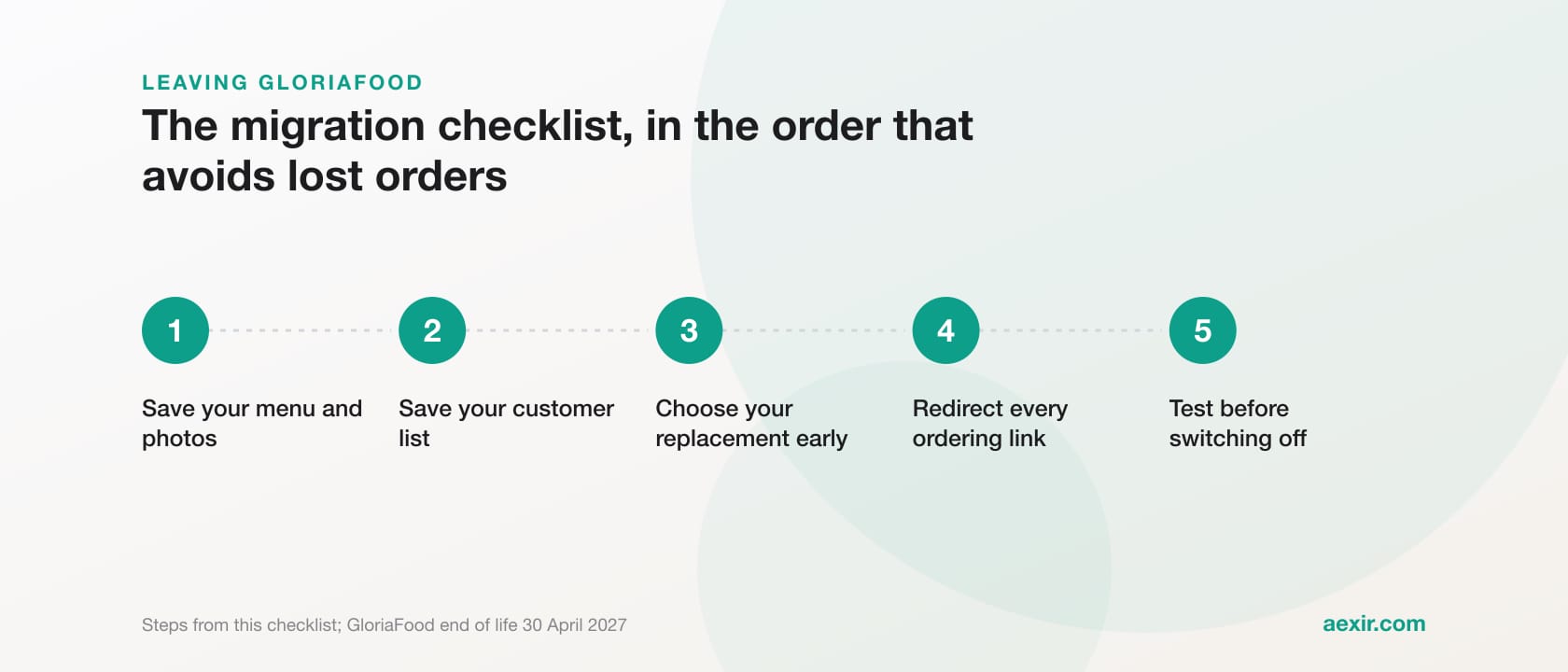
This guide covers buttons and links only. Saving your menu, photos and customer list is a separate job, set out in how to leave GloriaFood before the shutdown.
How to find every GloriaFood button on your site
GloriaFood’s button is a short piece of HTML, so it can sit anywhere: a page, a sidebar, the header or the footer. The WordPress plugin’s own code (version 2.4.4) marks each button with attributes that start with data-glf and loads a script from fbgcdn.com. That gives you a quick test on any platform: open each page of your live site in a desktop browser, view the page source, and search for glf, fbgcdn and foodbooking (GloriaFood’s own button guide loads the same script from foodbooking.com). Any match is GloriaFood code.
GloriaFood’s plugin FAQ names two buttons, See MENU & Order and Table Reservation, so look for both on every page with an order or booking button.
| Platform | How GloriaFood was added | Where to look | Help pages used (checked 28 October 2026) |
|---|---|---|---|
| WordPress, with the plugin | Plugin Menu - Ordering - Reservations, version 2.4.4: shortcodes, five blocks, a widget and Elementor widgets | Pages, posts, widget areas, header, footer, Elementor pages | wordpress.org/plugins/menu-ordering-reservations; wordpress.org/documentation/article/manage-plugins; developer.wordpress.org/reference/functions/do_shortcode |
| WordPress, without the plugin | Button code pasted into a Custom HTML block or a text widget | Pages, widget areas, theme header | wordpress.org/documentation/article/manage-wordpress-widgets |
| Wix | Button code pasted into an HTML embed element (GloriaFood’s guide: Embed, then Embed a Widget) | Every page, especially the header, which shows on all pages | gloriafood.com/add-online-ordering-button-wix; support.wix.com: Deleting Something From Your Site |
| Squarespace | An embedder script in the footer through Code Injection, plus a Code block holding the button on each page | Code blocks on pages; the Footer field of Code Injection | gloriafood.com/restaurant-ideas/add-online-ordering-button-squarespace; support.squarespace.com: Deleting blocks, Code injection, Button blocks |
| Smart link pasted into a Start Order action button and into posts | The Page’s action button, pinned and recent posts | gloriafood.com/restaurant-ideas/facebook-online-ordering-button; gloriafood.com/restaurant-ideas/guide-to-facebook-for-restaurants; facebook.com/help/977869848936797 | |
| Everywhere else | The same smart link, pasted or turned into a QR code | Google Business Profile, Instagram bio, link-in-bio pages, printed QR codes | support.google.com/business/answer/10842217; help.instagram.com/362497417173378 |
Plugin figures from the WordPress.org listing and plugin API, read 28 October 2026 (last updated 14 April 2025, tested up to WordPress 6.6.11). Shortcode, block and widget names from the plugin’s 2.4.4 source code, downloaded from WordPress.org.
WordPress: take out the Menu - Ordering - Reservations plugin
On WordPress.org the plugin is listed as Restaurant Menu - Food Ordering System - Table Reservation, by Gloriafood, with 7,000+ active installations and a warning that it has not been tested with the latest three major WordPress releases. In your admin it shows as Menu - Ordering - Reservations on the Plugins screen and, in version 2.4.4, as GloriaFood in the left-hand admin menu. It places buttons through shortcodes, five blocks (Ordering, Reservations, Food Menu, Opening Hours, Promotions), a widget and five Elementor widgets, so check all four.
- List the pages with a GloriaFood button, using the source search above.
- Open each page or post in the editor and delete the GloriaFood block, or the Shortcode block holding one of the plugin’s five shortcodes: [restaurant-menu-and-ordering], [restaurant-reservations], [restaurant-full-menu], [restaurant-opening-hours] or [restaurant-promotions].
- Remove the Menu - Ordering - Reservations widget under Appearance, then Widgets, or Appearance, then Customize (WordPress: Manage widgets). On a block theme, check the header and footer in the Site Editor instead.
- If any pages were built with Elementor, open them in Elementor and delete the GloriaFood widgets there (Ordering, Reservations, Food Menu, Opening Hours, Promotions).
- Add your new button to the same pages (next section) and publish.
- When no page shows the old button, go to Plugins, click Deactivate under Menu - Ordering - Reservations, then click Delete (WordPress: Manage Plugins, last updated 10 January 2026).
Remove the shortcodes before you deactivate the plugin, not after. A shortcode only turns into a button while the plugin that registered it is active. Once the plugin is off, WordPress leaves the bracketed text where it was (WordPress code reference: do_shortcode), and customers see [restaurant-menu-and-ordering] printed on your page.
Adding the new button in WordPress
A link needs no plugin. In the block editor, add a Buttons block from the + Block Inserter or by typing /buttons, type a label such as Order online, and use the Link option in the button’s toolbar to paste your new ordering address (WordPress: Buttons block, last updated 1 September 2026). For the main menu, add a Custom Link: in the Navigation block on block themes, or on the Appearance Menus screen on classic themes. A plain link is less likely to break than pasted embed code.
Wix: delete the embed and add a Wix button
GloriaFood’s Wix pages describe copy-and-paste button code rather than an app, so look for an HTML embed element, the box its guide told owners to add from Embed, then Embed a Widget. If it sits in the header, it shows on every page and needs deleting once. The guide also suggested repeating it on other pages, so check each.
- Open the Wix Editor and click the embed element that holds the GloriaFood button.
- Press Delete on your keyboard, or right-click it and delete it (Wix: Deleting Something From Your Site).
- In your site dashboard, open Settings, then Custom Code, and remove any GloriaFood snippet added site-wide (Wix: Embedding Custom Code on Your Site).
- From Add Elements, add a Button where the old one was. Select it, click the Link icon, choose Web address, paste your new ordering link, pick a new window or the current window, then click Done (Wix: Adding a Link to a Button).
- Check the button in Preview, then Publish.
Squarespace: delete the Code blocks and the footer script
GloriaFood’s Squarespace guide used two pieces: an embedder script in the footer through Code Injection, and a Code block holding the button on each page. Remove both, or the footer script keeps loading on every page. The same guide said custom code needed a Business or Commerce plan; Squarespace’s current help pages name Core, Plus and Advanced for JavaScript in code blocks and for code injection. A plain Button block uses neither.
- Edit each page, click the Code block with the GloriaFood button, click its trash can icon, then click Yes to confirm (Squarespace: Deleting blocks).
- Open the Code Injection panel and delete the GloriaFood script from the Footer field, then save (Squarespace: Customize parts of your site with code injection).
- Add a Button block where the old button was: Add block or +, then Button, then the pencil icon. Change the text, click attach link and paste your new address under URL (Squarespace: Button blocks).
- On version 7.1 you can also put an ordering button in the site header: click Edit, hover over the header, click Edit site header, then Add elements, and switch the Button toggle on. Then click the button, choose Edit design and set its text and link under Content (Squarespace: Build your site header).
Facebook: replace the smart link in the button and your posts
GloriaFood’s guides had owners paste the smart link into a Start Order action button and into their posts. The button is a quick fix: from your Page, open Options, choose Edit action button, pick the ordering button, click Next, paste the new link and click Save (Facebook Help Centre: Add an action button to your Facebook Page).
Skip the years of old posts: edit the pinned post and the most recent ones, then publish and pin a short post with the new link.
Google Business Profile, Instagram and QR codes
On Google, check two places. The website field is under Edit profile (Google: Edit your Business Profile). Ordering links sit under Food ordering: select it, then Add a link at the bottom. Select the new link, choose Set as preferred, turn on collection or delivery, and Save. Then select the old GloriaFood link and choose Remove link; if a provider added it, Google says providers must remove it within five working days of your request (Google: Manage online ordering options). Turning off Accept orders on your profile hides the links you added, so leave it on.
On Instagram, edit your profile and replace the GloriaFood address in your links (Instagram Help Centre: Add a website to your Instagram profile). If your bio points at a link-in-bio page, change the ordering link on that page as well.
A QR code that encodes the GloriaFood link itself cannot be edited once printed: it can only be replaced. If a QR service lets you change where your code points, change it there. Scan every code on table cards, window stickers, menus, flyers and bags, and note where each one goes. The free order direct print kit makes a window poster, table tent, bag stickers and counter cards from any ordering address, with no sign-up.
A tip for the reprint: point new QR codes at a page on your own website, such as yourrestaurant.co.uk/order, that holds your ordering button. If you change provider again, you edit one button instead of reprinting every code, at the cost of one extra tap.
Test everything before you switch GloriaFood off
- View the source of every page again and search for glf, fbgcdn and foodbooking. No matches means no GloriaFood code is left.
- Tap every new button on a phone, on mobile data, and place one real order end to end.
- Scan each new QR code from a printed copy, not from the screen.
- Check your Google profile and Facebook Page while logged out.
- Only then delete the WordPress plugin, and keep GloriaFood running until every swap is done. GloriaFood’s homepage gives 30 April 2027 as its end of life; plan to finish well before it.
If you have not picked the replacement yet
Aexir is an online ordering system for independent restaurants and takeaways: their own branded iOS and Android ordering app, ordering website and browser till (POS on the Go), for a flat monthly fee at published prices. Aexir Digital Ltd is based in Manchester and sets up restaurants in the UK, France and worldwide. Its ordering website lives at yourname.aexir.com and Aexir hosts it, so it goes behind your new button and your WordPress, Wix or Squarespace site stays as it is. The GloriaFood alternative page compares the two.
The published UK plans, a month ex VAT, are Web £30 (ordering website and POS on the Go, no app), Starter £30 (branded iOS and Android app), Plus £40 (app and website) and Pro £50 (app, website and POS on the Go). France has its own list (40 €, 40 €, 50 € and 60 € HT); both are on the pricing page. Setup is done by Aexir, and you can send your menu in whatever form you have it: an export, a PDF or photos. Outside the UK and France, check currency, tax, card payments and delivery for your country with us on the call before you sign.
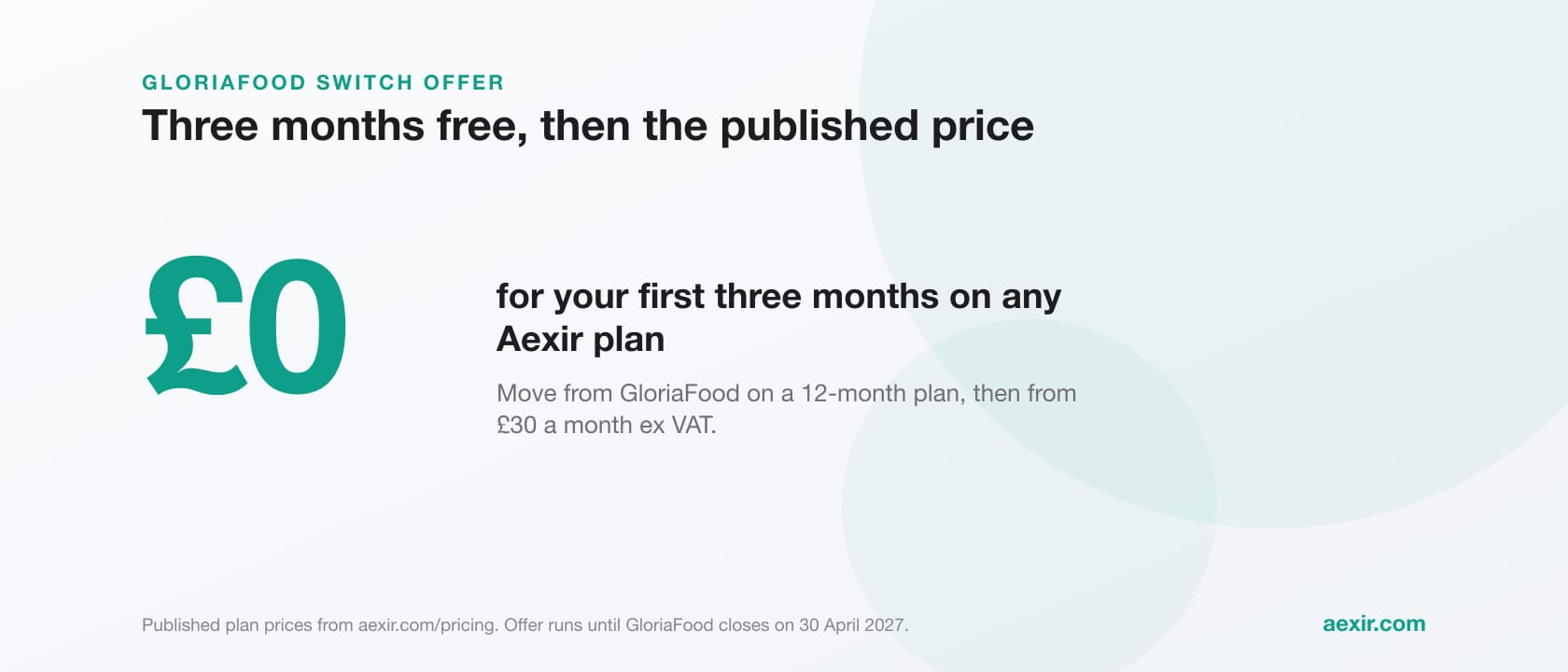
Under the GloriaFood switch offer, a plan signed on a 12-month term before 30 April 2027 costs £0 for the first three months, then the published price from month four. Cancel before the 12 paid months finish and the free months are charged: £90 on Web or Starter, £120 on Plus and £150 on Pro ex VAT in the UK, 120 €, 150 € or 180 € HT in France, and at the published price list in other countries.
Moving off GloriaFood?
The switch offer page has the full terms and the sign-up route.
See the switch offerTalk to a real person about switching
Common questions answered.
Not first. Remove its shortcodes, blocks and widgets and put your new button in, then deactivate and delete it. Deactivate first and any shortcode left on a page, such as [restaurant-menu-and-ordering], shows as plain text.
GloriaFood’s own Wix pages describe copy-and-paste button code, not an app. Look for an HTML embed element on your pages, often in the header, and check Settings, then Custom Code in your Wix dashboard for anything added site-wide.
Squarespace’s help pages put the Core, Plus or Advanced plan requirement on JavaScript in code blocks and on code injection. A Button block or header button that links to a web address uses neither.
In the GloriaFood admin under Publishing, then Facebook, according to GloriaFood’s Facebook guide. Copy it while your account still works.
GloriaFood’s homepage gives 30 April 2027 as its end of life without listing what stops feature by feature, so treat any button, link or QR code that depends on GloriaFood as one that will stop taking orders, and replace it before then.
Yes, the platform steps are the same everywhere. If Aexir is your replacement outside the UK and France, check currency, tax, card payments and delivery for your country with us on the call before you sign.
Build your own restaurant app.
Aexir launches branded ordering apps for UK restaurants in under 30 days. A flat monthly fee at published prices. From £1/day.