Setup
How to Add Your Own Order Online Button to Google Business Profile
Photo: Enrique Alarcon on Unsplash
To add an Order online button to your Google Business Profile, open your profile on Google Search or in the Google Maps app, select Food ordering (in Maps: Edit profile, then Food ordering), choose Add link, paste the address of your own ordering page and save. Then select that link again, choose Set as preferred and turn on collection and delivery, so Google lists your link before any marketplace. Every step in this guide comes from Google's own Business Profile help pages, checked 28 October 2026.
Short answer: your profile can carry your ordering address in three places: the Website field, the Menu link and the food ordering links behind the 'Order online' or 'Place an order' button. Google lists food ordering providers in random order unless your website is available or you have set a preferred provider, in which case those show first. Set your own link as preferred, remove providers you do not use, and never point the Menu link at a marketplace, because Google's guidelines rule that out.
Where an ordering link can live on your Google profile
Owners often talk about 'the Google link' as if it were one thing. Google's help pages describe several separate fields, each with its own rules. A customer who taps Website, Menu or Order online can land in three different places, so all three need checking.
| Profile field | Where you edit it | What Google's help pages say | What to put there |
|---|---|---|---|
| Website | Edit profile, contact details | Should represent your individual location; enter the full address with https://; do not use URLs that redirect or refer customers to other landing pages, including social media pages | Your own website or ordering site |
| Menu link | Edit profile, then Business information, then Contact, then Menu link | A single link; the menu must represent what is available; menu URLs cannot be direct links to third-party ordering or delivery services | A menu page on your own site or ordering site |
| Food ordering links ('Order online' or 'Place an order') | Food ordering on Google Search; Edit profile, then Food ordering in Google Maps | Up to 10 links per category; you can mark one as preferred for collection and for delivery; third-party providers can add their own links | Your own ordering page, set as preferred |
| Menu items and prices | Edit menu | Google may transcribe menu data from your website; where it finds several menu sources you choose the preferred one; edits can take 24 to 48 hours to show | Current dishes and prices that match your ordering page |
Sources: Google Business Profile Help pages 'Manage your local business links' (support.google.com/business/answer/6218037), 'Manage online ordering options' (answer/10842217), 'About the menu editor' (answer/9455840), 'Edit your Business Profile' (answer/3039617) and 'Guidelines for representing your business on Google' (answer/3038177), all checked 28 October 2026.
The profile itself costs nothing: Google's Business Profile page for the UK says creating a profile and listing your business is free (business.google.com/uk/business-profile, checked 28 October 2026), and none of the help pages above mention a charge for adding a link. What you pay depends entirely on the ordering page the link opens.
Step by step: add your own Order online link
- Sign in to the Google account that manages your Business Profile. Google's help page says you need that account to edit your business information.
- Open the profile. On a computer, search Google for your restaurant's name while signed in to that account. On a phone, open the Google Maps app, tap Business at the bottom right, then Edit profile.
- Go to the ordering section. On Google Search, select Food ordering. In Google Maps, select Edit profile, then Food ordering. Google's links page lists Booking, Food ordering and Pick-up and delivery as separate link types; restaurant ordering links belong under Food ordering.
- Select Add link, or Add another link if links are already listed. Paste the full address of your ordering page, starting https://, and select Save. Google allows up to 10 links in each category.
- Set it as preferred. In Food ordering, select your link from the list, select Set as preferred, turn on Preferred for collection and Preferred for delivery, then select Save. Google notes that a toggle cannot be switched on for a provider that does not offer that option.
- Check the Website field. In Edit profile, make sure it shows your own site with the full https:// address, and that your site does not block Googlebot, which Google's edit page asks you to confirm.
- Set the Menu link to your own menu page, under Edit profile, Business information, Contact, Menu link. A full menu page on your own ordering site works. A marketplace listing does not, under Google's guidelines.
- Wait for review, then test. Google says it reviews changes before they go live, so check again on a phone later rather than straight away.
Do not switch off 'Accept orders on your profile' to get rid of marketplace links. Google's help pages warn that turning it off hides every ordering option and link on your profile, including the ones you added yourself. Remove the providers you do not want one at a time instead.
Why Just Eat, Deliveroo or Uber Eats links appear without you adding them
Google's help page is plain about this. Third-party providers who state that they have authorised relationships with your business are listed on your profile automatically, and the availability shown is supplied and updated by those providers. Google's UK restaurants page adds that merchants in Australia, Canada, Germany, Japan, the United Kingdom and the United States can work with ordering providers this way, and that a business using one of Google's existing partners should see it appear on the profile automatically (business.google.com/uk/business-profile/restaurants, checked 28 October 2026).
In practice, if you sell through a marketplace that works with Google, its link can turn up on your profile without you doing anything. Just Eat announced on 25 February 2022 that it was joining Order with Google in the UK, with payments taken by Just Eat and made through Google Pay (newsroom.justeattakeaway.com, checked 28 October 2026). None of this is a fault in your profile. It is how the feature is designed, and it is why the preferred setting matters.
How Google decides which ordering link comes first
Google's help page on how providers rank for local business links (support.google.com/reserve/answer/12174393, checked 28 October 2026) says that for food orders, providers are listed in random order. If the business's own website is available, or the business has chosen a preferred provider, those show first. On a phone, providers the business prefers carry a label saying so. Leave the setting empty and your own link is just one option in a shuffled list beside the marketplaces.
How to make your own link the one customers see
- Set your own link as preferred for both collection and delivery. Under Google's ranking rules, this is the change that moves it to the top of the list.
- Remove providers you no longer use. In Food ordering, select the provider, then Remove link. Google says providers must take third-party links off a profile within five working days of the business asking, and you can report a violation if a provider does not.
- Keep marketplaces you still sell on if you want to, but not as preferred. Some customers will always order through an app they already have; your link simply should not sit below theirs.
- Clear out links from systems you have left. If you are moving off GloriaFood before it reaches end of life on 30 April 2027, its ordering link may still sit on your profile: add your new link, set it as preferred and remove the old one. Our GloriaFood alternative page covers the rest of the move.
- Match your hours. The opening hours on Google should match the hours your ordering page takes orders, or customers tap Order online at 10pm and find you closed.
What a marketplace link costs when it wins the tap
Someone who searches your restaurant's name on Google has already chosen you. If the first ordering option they see is a marketplace, you pay that marketplace's fee on a customer you won yourself. Uber Eats publishes its UK rates on its own merchant site, so we use them for the worked example below. For Just Eat, see our Just Eat commission guide, and for the full Uber Eats fee stack, our Uber Eats commission guide.
| Where the customer orders | Published rate | Fee on a £25 order | Source |
|---|---|---|---|
| Uber Eats, Uber courier delivers | 30% plus VAT (the page shows 33% for Uber One members) | £7.50 plus VAT (£8.25 at 33%) | merchants.ubereats.com/gb/en/pricing, checked 28 October 2026 |
| Uber Eats, you deliver | 13% plus VAT | £3.25 plus VAT | Same page |
| Uber Eats, customer collects | 13% plus VAT | £3.25 plus VAT | Same page |
| Your own ordering page on Aexir | Card payment 2.5% + 30p per transaction (UK) | About 93p, plus a flat monthly fee from £30 ex VAT | aexir.com/pricing |
Worked example, not a client result. Uber Eats also states a £650 activation fee excluding VAT on the same page. The 30% row includes Uber's courier: if you move those customers to your own page, you need your own driver or a partner courier, and that has its own cost.
Stretch it over a month, still as a worked example. If 100 collection orders of £25 came through an Uber Eats link on your profile, the published 13% would be £325 plus VAT. The same 100 orders through your own ordering page would cost about £92.50 in card fees, plus your monthly plan. That gap of £232.50 before the plan is what is at stake when a customer who already chose you taps the wrong link. To see how the plan and the card fee compare across providers, read what ‘commission-free’ ordering really costs.
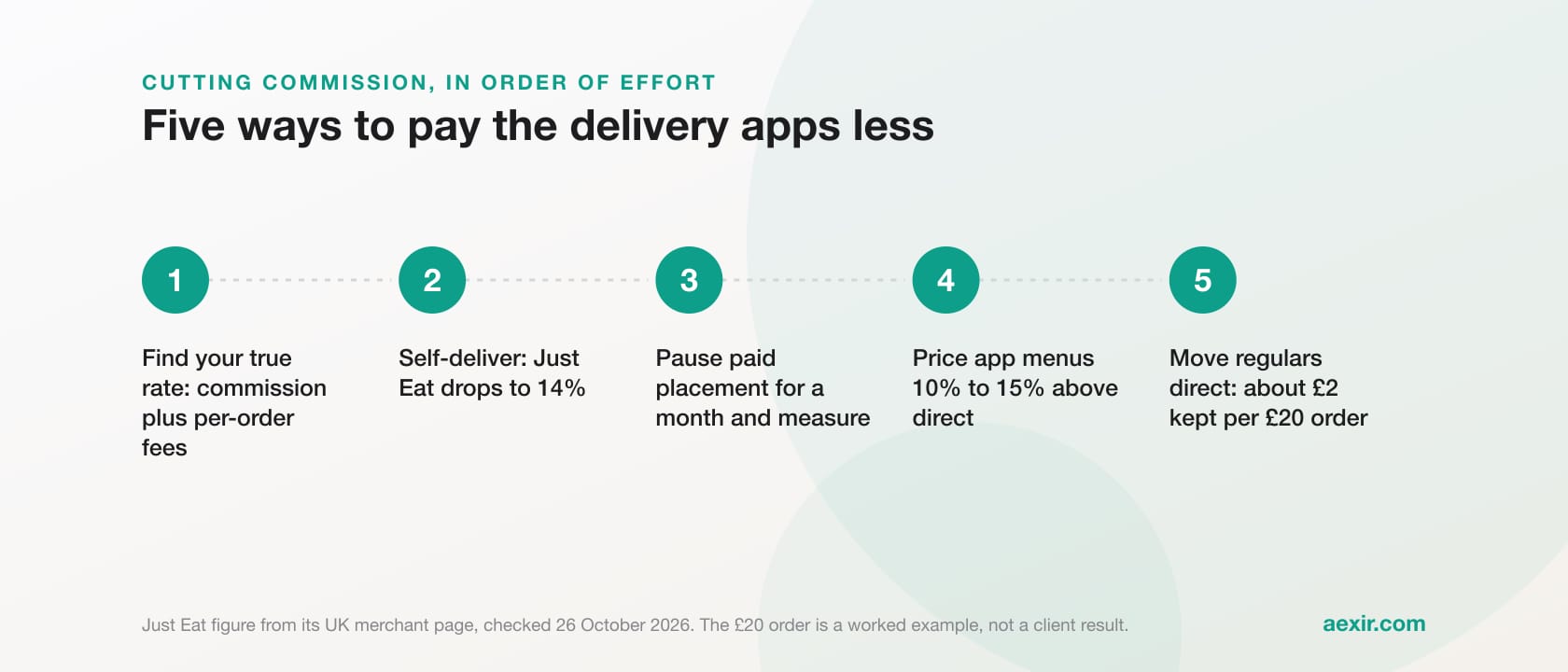
Moving regulars off marketplaces is a bigger job than one setting. Bag inserts, a reason to order direct and a loyalty scheme all play their part, and our guide to reducing delivery app commission and the free order direct kit cover those. The Google profile matters because it catches customers at the exact moment they look you up by name.
The menu link and website rules that catch restaurants out
Google's guidelines for representing your business contain two rules that matter here. First, menu URLs cannot be direct links to third-party ordering or delivery services, so a Menu link pointing at your Deliveroo or Just Eat page breaks the guidelines. Second, the website should represent your individual location, and Google asks businesses not to use URLs that redirect or refer customers to landing pages other than the business's own, including pages created on social media sites.
Google can also take your menu from your website. Its menu editor page says Google may transcribe menu data from your site, and where it finds more than one menu source you can choose the preferred one from the Full menu tab under Edit menu. A clear, text-based menu page on your own site, with current prices and allergen notes, gives Google something accurate to copy. If you would rather Google did not copy menu data from your site, the same help page links to an opt-out from menu transcription. Our free allergen matrix helps with the allergen side.
More than one location
Each location has its own Business Profile, and each one needs its own ordering link that opens the right branch. Google's links page notes that local business links are not available through the Business Profile API or spreadsheet upload, so for a group of sites this is done profile by profile. Menus are the other way round: Google's menu editor page says updating a menu across several profiles at once has to go through the Business Profile API. Keep a short list of every profile, its link and its preferred setting, and check it whenever a branch opens or closes.
Check it the way a customer would
- On a phone, open a private browser window so you are not signed in, and search for your restaurant's name and town.
- Tap Order online, or Place an order if that is how your profile shows it. Google says the wording and position vary by country and region. Your own link should be first, labelled as the business's preferred option.
- Tap through and place a small collection order to make sure the page loads, takes payment and reaches the kitchen.
- Check that the Menu link and the Website link both open your own pages, not a marketplace listing.
- Repeat once a month. Providers can add links on their own, so a new marketplace listing can appear without anyone touching the profile.
If you do not have your own ordering page yet
The preferred setting only helps if there is something of yours to prefer. A direct ordering page needs to work on a phone, take card payment, offer collection and (if you run drivers) delivery, and show your hours and allergen information. Our restaurant website page and the online ordering system overview explain what that involves and what each part does. To compare the providers that sell one, see UK ordering systems ranked by need.
Aexir is an online ordering system for independent restaurants and takeaways: their own branded iOS and Android ordering app, ordering website and browser till (POS on the Go), for a flat monthly fee at published prices. The Web plan, a branded ordering website with POS on the Go, is £30 a month ex VAT; Plus, the app and the ordering website, is £40; Pro, the app, the ordering website and POS on the Go, is £50. Card payments in the UK are 2.5% + 30p per transaction. Every figure is on the pricing page.
Give Google a link of your own to prefer
A branded ordering website under your restaurant's name, ready to add to your Business Profile, for a flat monthly fee at published prices.
See the ordering websiteCommon questions answered.
Open your profile on Google Search or in the Google Maps app, select Food ordering, choose Add link, paste your ordering page's full address and save. Then select the link, choose Set as preferred and turn on collection and delivery so it is listed first.
Google lists third-party ordering providers automatically when they state that they have an authorised relationship with your business, and those providers supply and update the links. If you sell on a marketplace that works with Google, its link can appear by itself. You can remove it, or keep it and set your own link as preferred so yours shows first.
In Food ordering, select the provider, then Remove link. Google says providers must remove third-party links within five working days of the business asking, and you can report a violation if a provider does not. Do not switch off Accept orders on your profile to do this, because that hides your own ordering links as well.
No. Google's guidelines for representing your business say menu URLs cannot be direct links to third-party ordering or delivery services. Point the Menu link at a menu page on your own website or ordering site, and use the Food ordering section for ordering links.
Google says creating a Business Profile and listing your business is free, and its help pages describe no charge for adding a link. The cost sits behind the link: a marketplace charges its own fee on each order, while your own ordering page costs whatever your ordering system charges.
Google says that in some countries and regions ordering options sit under an Order online button, while in others Place an order links appear separately on the profile. Also check that Accept orders on your profile is switched on in Food ordering, because when it is off every ordering link is hidden.
Keep reading
Takeaway Marketing Ideas UK: 15 That Work in 2026
How to Pay Less Commission to Uber Eats and Just Eat
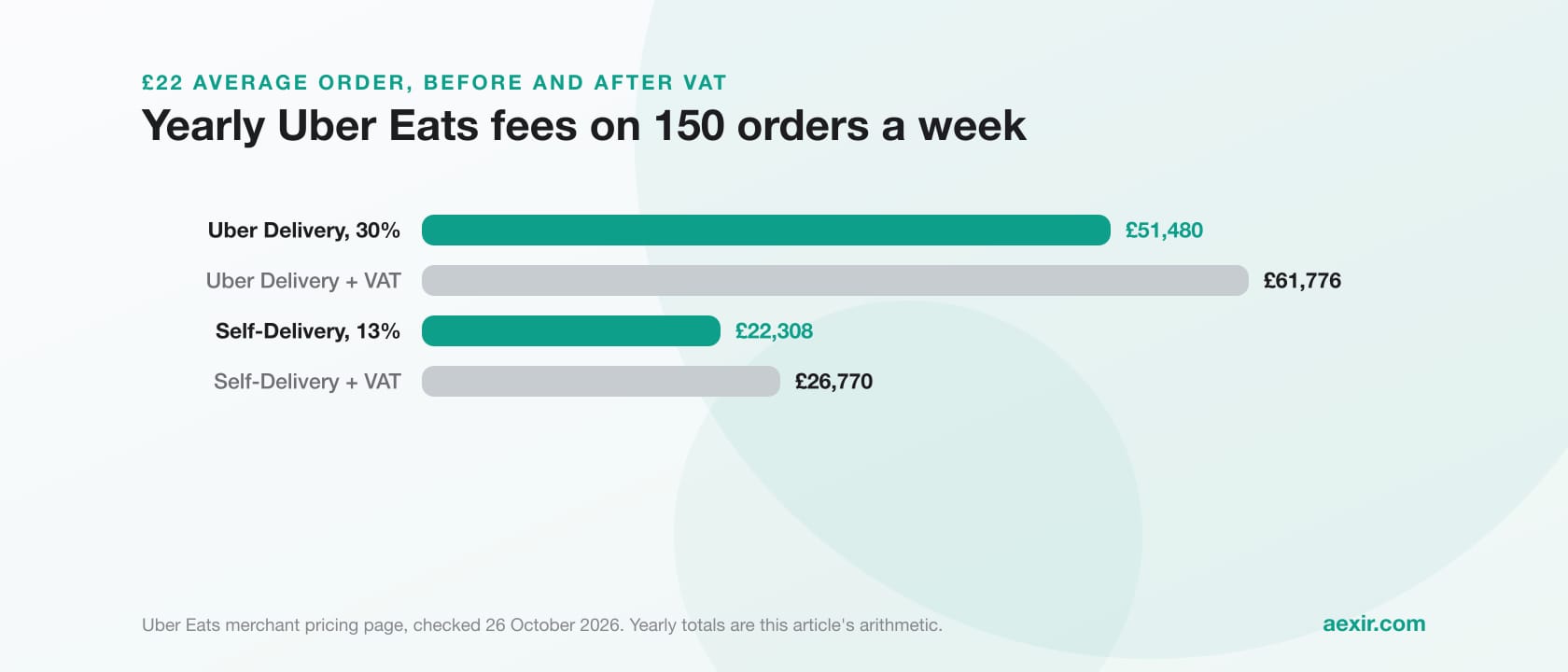
How Much Commission Does Uber Eats Take From Restaurants in the UK? (2026)
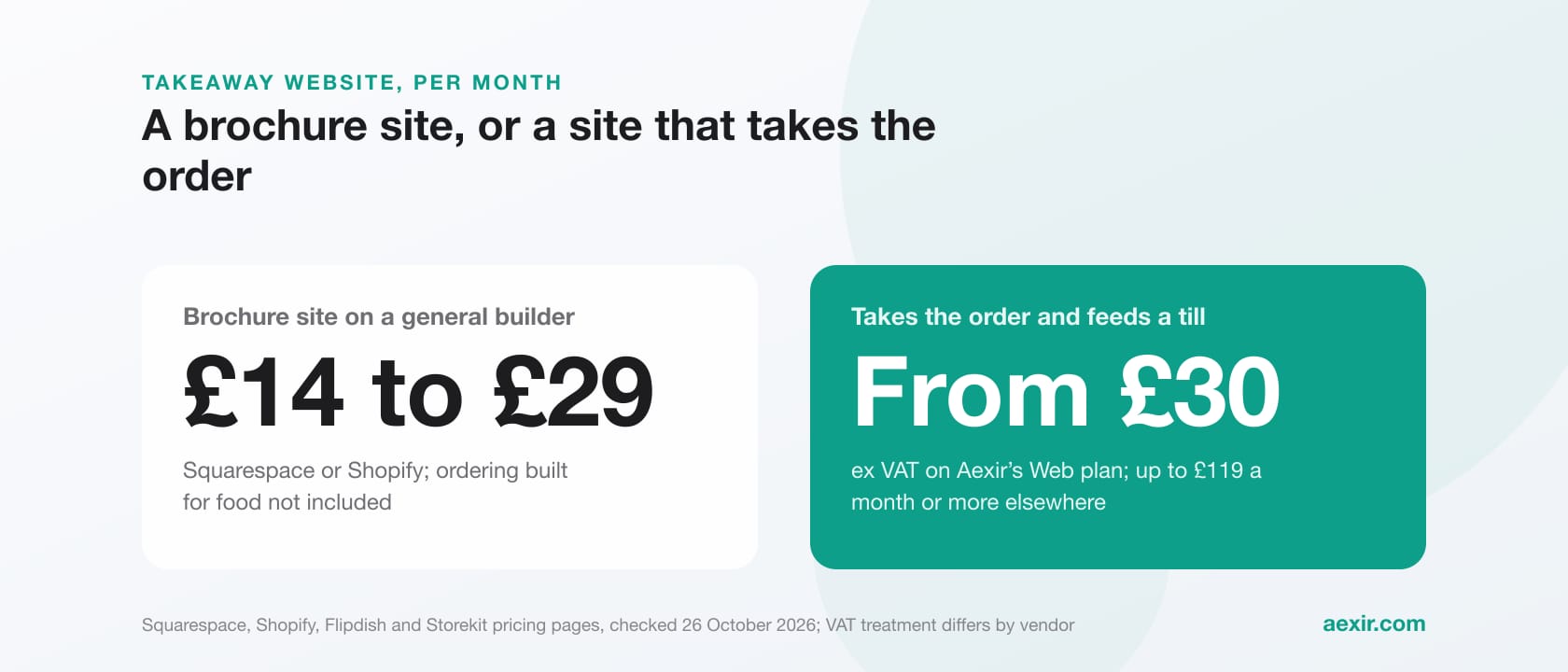
Takeaway Website: What It Should Cost and What to Put on It (UK, 2026)
Build your own restaurant app.
Aexir launches branded ordering apps for UK restaurants in under 30 days. A flat monthly fee at published prices. From £1/day.